Retrowave 2 Controls Hub
Map inputs, choose a camera, and keep the neon highway readable at speed.
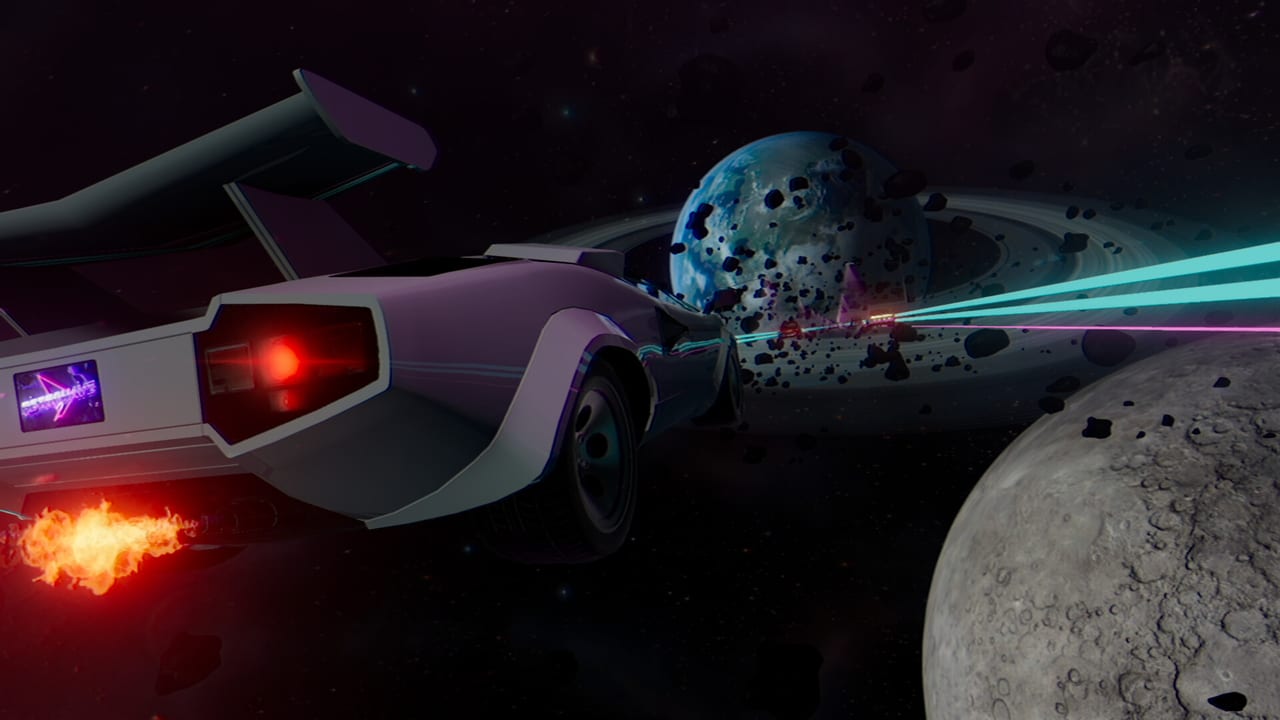
The Controls Hub is where Retrowave 2 stops being a vibe screenshot and becomes a game you can drive cleanly. RewindApp ships full controller support and Steam Deck Verified status, but your first hour still lives or dies on input comfort, camera choice, and how quickly you can read traffic in neon glare.
Retrowave 2 is a single-player arcade racer on an endless highway with curves. You are not fighting a racing line against rivals; you are managing lane ownership against traffic density while speed, distance, and near-misses pay cash. That means controls must feel predictable under panic swerves. If steering is oversensitive, you clip bumpers. If braking feels delayed, Bomb mode punishes you. If the camera sits too close, two-way traffic becomes a blur.
Pages in this category
Keyboard Controls documents the desktop default layout for players who prefer WASD-style or arrow driving with quick nitro access. It also covers practical habits: feathering throttle on curves, when to tap brake instead of holding, and how to keep one hand free for camera toggles if your bind set allows it.
Controller Controls is the page for gamepads, including DualShock and DualSense style support listed on Steam, plus general Xbox-layout habits. It explains stick sensitivity comfort, trigger braking, and why controller play often wins for long synthwave sessions and Deck play.
Camera and HUD explains the presentation layer: chase angles, cockpit-adjacent views if you use them, speed readability, and how to keep lane markers visible when a universe goes heavy on pink fog and reflective asphalt. Pair it with Steam Deck if you play handheld.
Why controls matter for progression
Cash in Retrowave 2 comes from staying alive and taking smart risks. Near-miss chains described in Near-Miss Combos only exist if your inputs can micro-correct without oversteer. Bomb mode, detailed under Bomb and How to Beat Bomb, demands throttle discipline. Time Attack rewards clean nitro timing explained in Nitro Guide. None of those systems feel fair if your bind map fights you.
Before you spend heavily in the garage, spend ten minutes here. Confirm your device, confirm your camera, then run a short One Way session with the Falcon 40. If you can weave without accidental curb panic, you are ready for Getting Started economy advice. If not, adjust deadzones and camera before buying engine upgrades that only make mistakes faster.
Desktop vs Deck mindset
On a monitor, keyboard can be extremely precise for lane centerline holds. On Steam Deck, controller layouts and a slightly higher camera often reduce fatigue. Custom music and loud synthwave tracks make audio feedback part of the drive; keep UI scale and brightness comfortable so neon bloom does not hide brake lights of traffic cars.
When you finish this hub, continue into How to Play for systems context, then Performance Upgrades so your improved inputs meet a car that actually turns.
Frequently Asked Questions
Quick answers for Retrowave 2 drivers.
Does Retrowave 2 support controllers?
Yes. The game lists full controller support on Steam, including popular DualShock and DualSense style pads, and it is Steam Deck Verified.
Should I learn keyboard or controller first?
Use whichever you will keep for long sessions. Keyboard is precise on desktop; controller is usually better on Steam Deck and for relaxed cruising.
Can camera choice affect near-misses?
Yes. A readable chase angle makes traffic gaps easier to judge, which directly improves near-miss timing and crash avoidance.
Where should I go after setting controls?
Read Getting Started, then practice in One Way before specializing into Time Attack or Bomb.